Hello, Quarto
Overview
This in class activity connects you with how to use R and R Studio in the cloud using Jupyterhub, and provides you an introduction to Quarto. Here are some additional learning resources on these topics.
NoteFollow Along
- Right click the link in the navbar and “open in a new tab” to log directly into RStudio via JupyterHub This will (will go through SSO)
- In the bottom right Files pane, navigate to the
shared/Donatello MATH 315folder. - Click on the box to the left of
00-hello_world.qmd, click More and then Copy To.- Select Home and then Save
- Navigate back up to your home directory by clicking Home in the Files pane again, and then click on the
00-hello_world.qmdto open this file in RStudio
⚠️ If you get an error about “save_diff”, then you may have opened the file in the shared folder. Close this error, close the open qmd file, then navigate back to your Home directory and try again.
- Click the “Render” button on the top.
- Make the right side window tall and compare what you see left to right.
Meet Quarto
Quarto enables you to weave together content and executable code into a finished document. To learn more about Quarto see https://quarto.org.
Meet the penguins
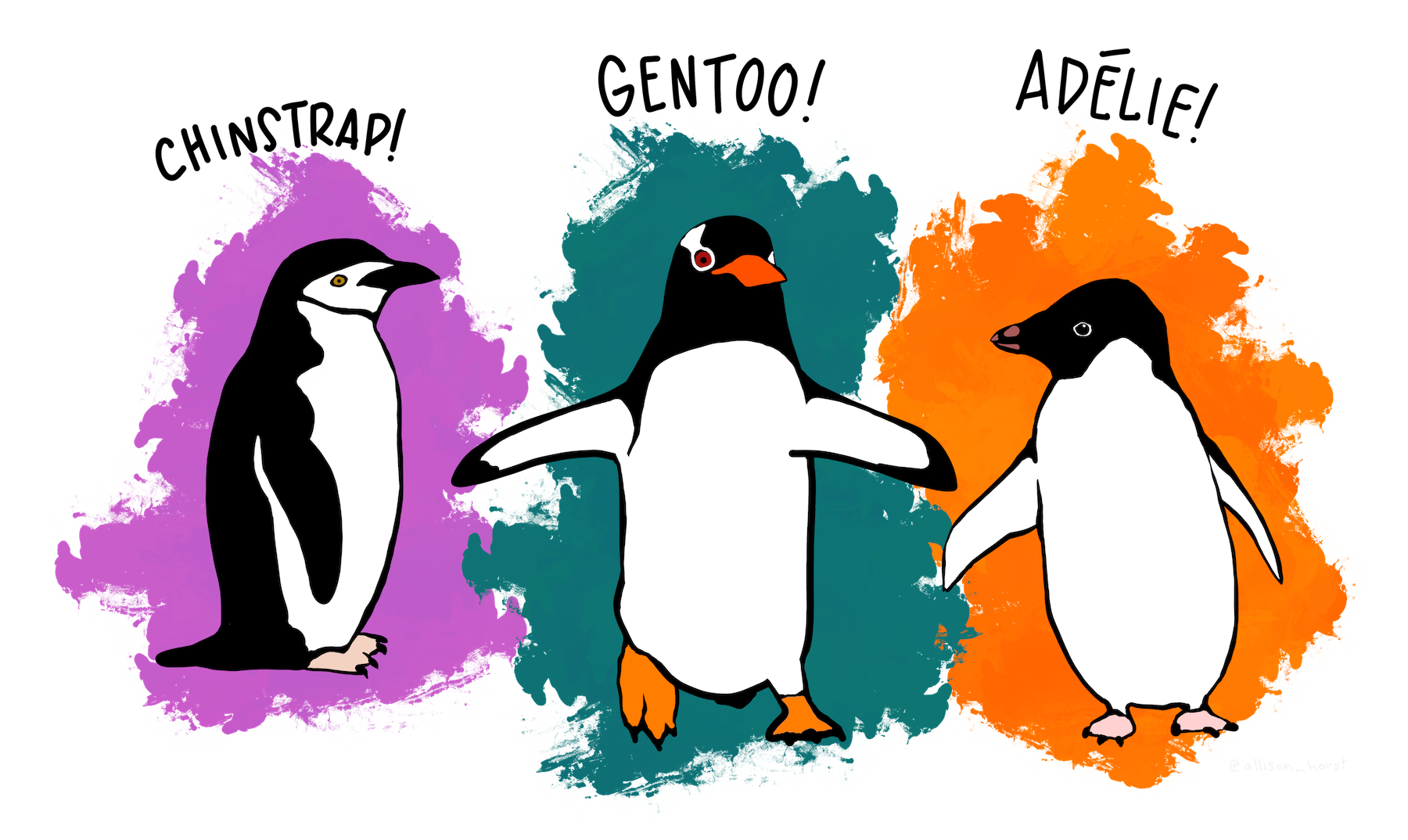
The penguins data from the palmerpenguins package contains size measurements for 344 penguins from three species observed on three islands in the Palmer Archipelago, Antarctica.
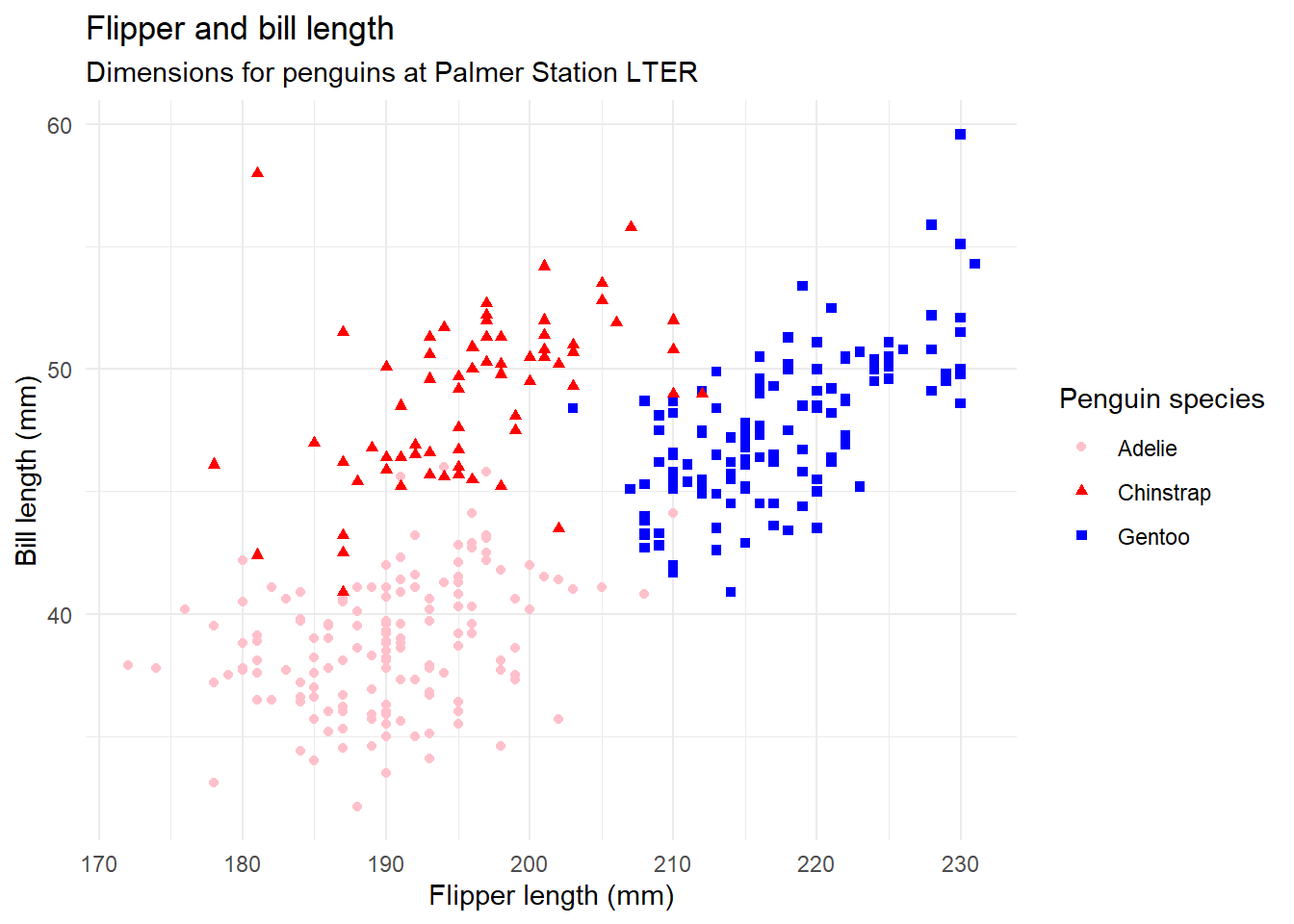
The plot below shows the relationship between flipper and bill lengths of these penguins.
Fix the colors
It would be nicer if the plot colors for each penguin species matched the colors in the picture. In the Console pane (bottom left in RStudio) type the command colors() and then press Enter.
Replace the pink/red/blue color names in the code chunk above in the scale_color_manual layer with your choices, render and see if you got it right. Iterate until you think it’s close enough!
Additional questions
Answer the following question in normal text (not code block) below.
- What aspects about research interest you most?